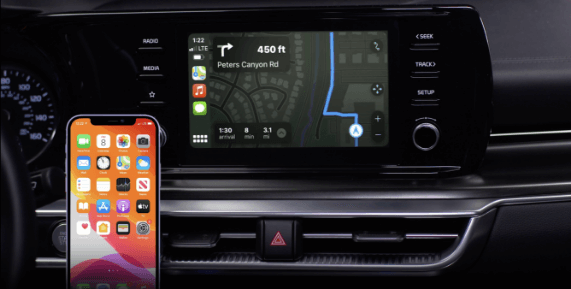
Apple CarPlay® Setup*

Cable Connection setup for Apple CarPlay®:

  1. Connect the Apple CarPlay® compatible iPhone® with the vehicle’s USB port using the manufacturer’s cable provided with your iPhone®
  2. Press the SETUP key on the Infotainment System
  3. Press DEVICE CONNECTIONS, PHONE PROJECTION SETTINGS, select Apple CarPlay® and then select Enable Apple CarPlay®
  4. Select ENABLE APPLE CARPLAY®. Review all terms, conditions and requests on the head unit and phone, and, if you agree, accept them in order to use Apple CarPlay®
  5. From the audio head unit home screen, select the Apple CarPlay® button, where you’ll see all the Apple CarPlay® supported apps

Quick Tips:

If Apple CarPlay® randomly disconnects:

  • Ensure the USB cable is certified by the phone manufacturer for both power and data
  • Clean the phone’s port, which the USB cable connects to, as instructed by the phone’s manufacturer.
  • The phone should not be disturbed while driving as this can cause a disconnection at the phone’s USB port
  • Visit the phone manufacturer’s website for Apple CarPlay® app concerns

Reminders:

Apple CarPlay® compatibility requirements for connection:

  • USB cable connection only: iOS® software 8.0 or higher, phone manufacturer’s USB cable and data plan for applicable feature(s)
  • It is recommended to always update your phone to the latest operating system release

*See LEGAL page for legal information.

-

Driving while distracted can result in a loss of vehicle control that may lead to an accident, severe bodily injury, and death. The driver’s primary responsibility is in the safe and legal operation of a vehicle, and any handheld devices, other equipment, or vehicle systems which take the driver’s eyes, attention and focus away from the safe operation of a vehicle or which are not permissible by law should never be used during operation of the vehicle.

-

Refer to the Car Infotainment System Quick Reference Guide for more information.

-

iPhone is a registered trademark of Apple Inc.