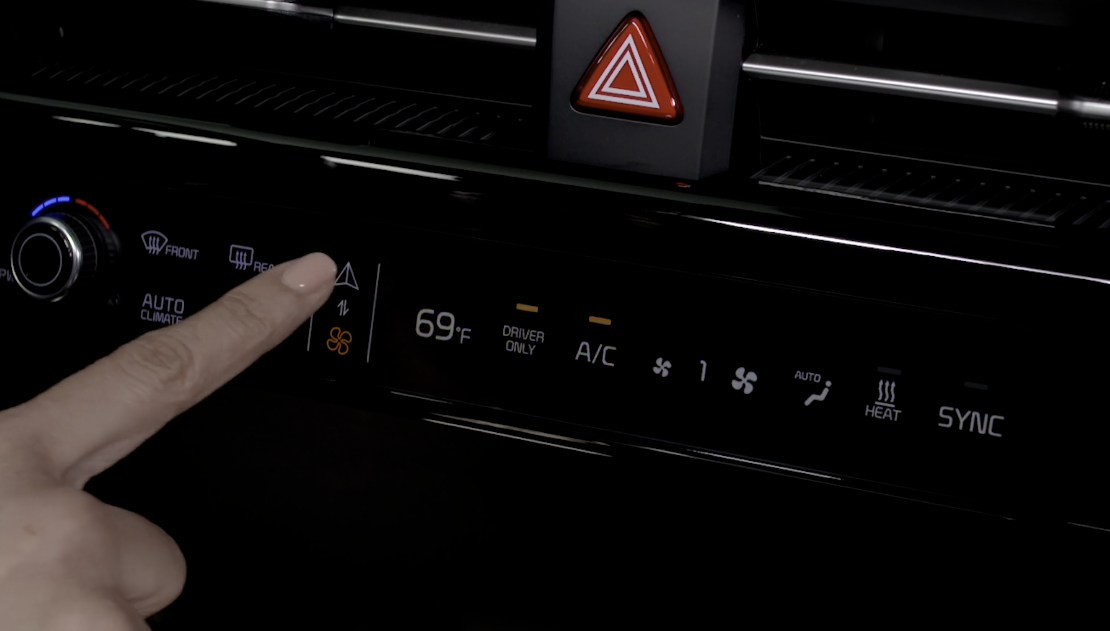
AC & Infotainment System - Switchable Controller
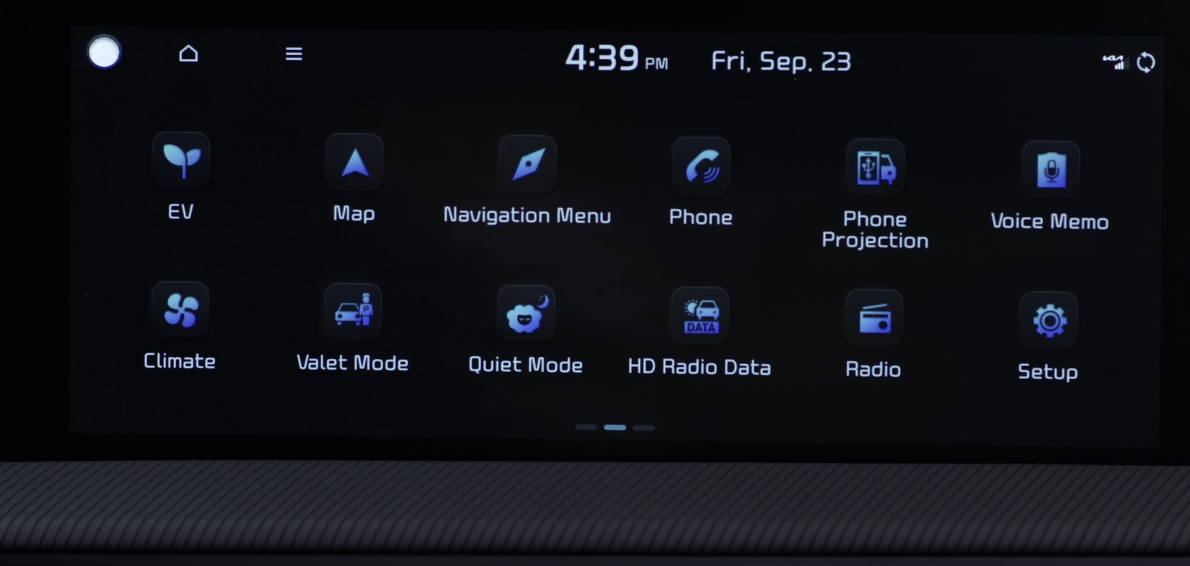
Featuring:
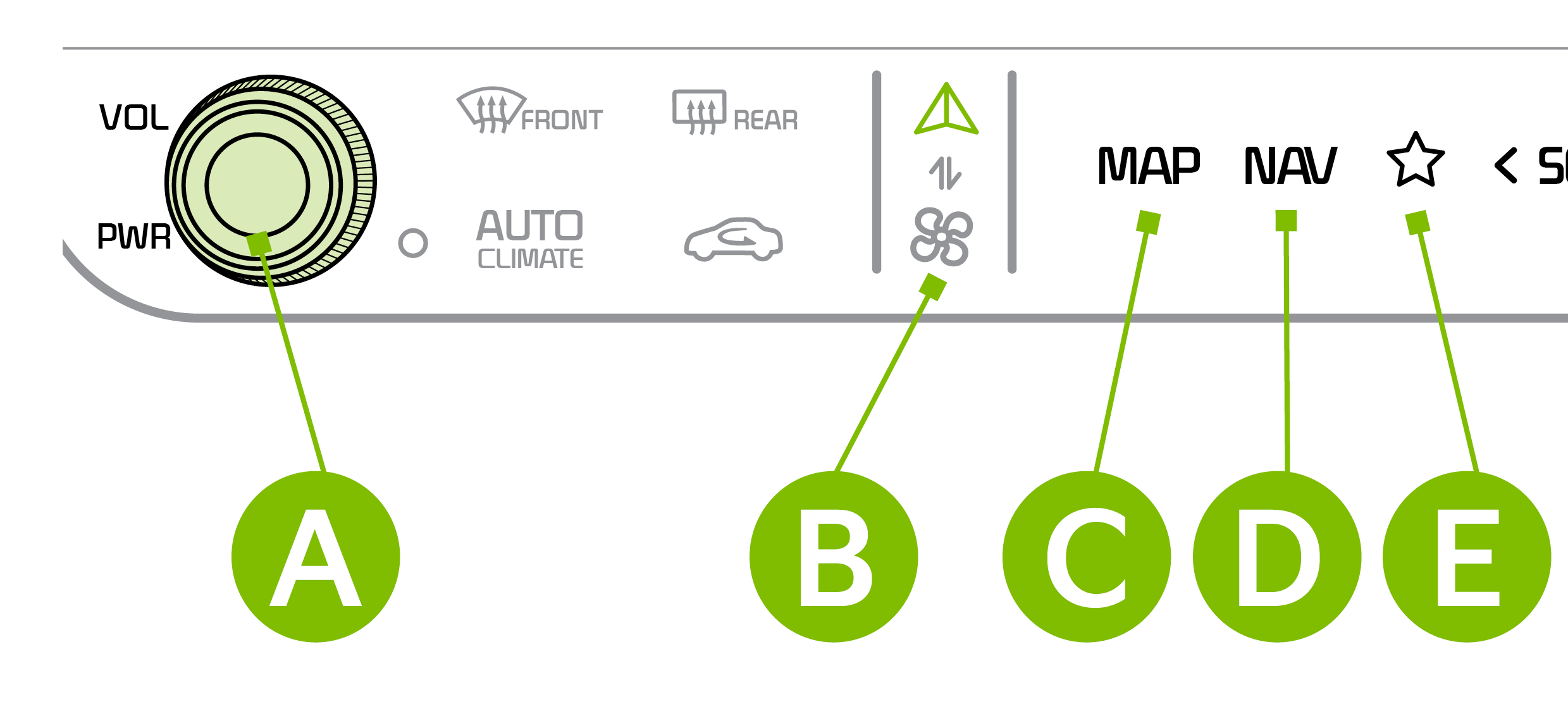
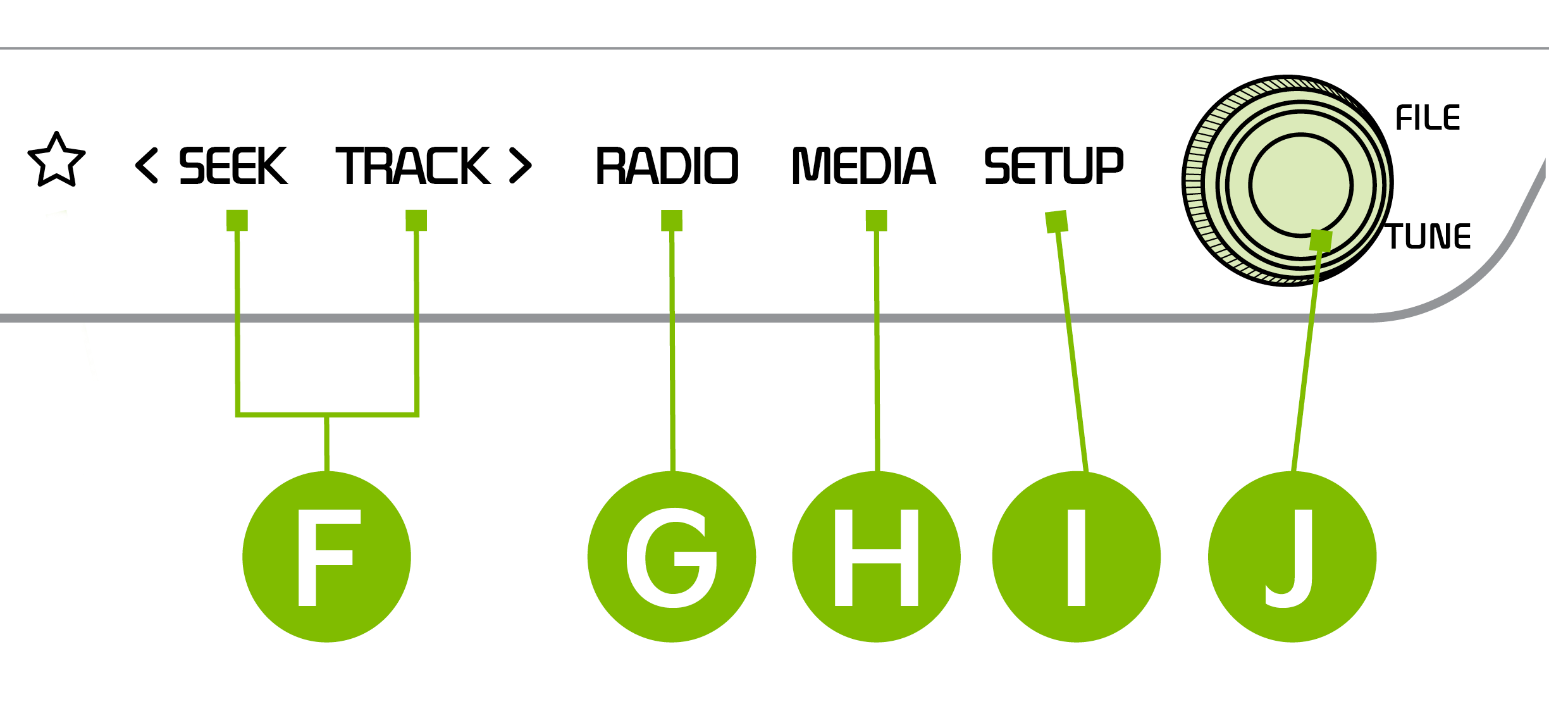
 Press to Power ON/OFF. Rotate to adjust Volume
 Infotainment System / Climate Control mode switching button
 Press to display the Map screen for the current position/Voice mode
 Press to display the Nav screen
 Press to go to Custom (Set) Menu
 Press briefly to do the following:
Press and hold to the do the following (over 0.8 seconds):
 Press to change Radio/SiriusXM®* Station mode
 Press to select MEDIA mode
 Press to display SETUP/Settings mode
 In Radio/SiriusXM®/ Media modes, rotate knob to search for stations/ channels/ tracks/ songs/ files
 Press the Infotainment/climate control mode switching button to toggle between Infotainment System and Climate Control Modes. Press and hold the Infotainment/climate control mode switching button to set the default button display mode.
Sound Settings: To adjust the sound settings, Press the **SETUP **key on the Infotainment System. Select the onscreen SOUND button, then select the menu item. Use the onscreen buttons to adjust settings. Press the return button to save settings.
Radio Presets: To save a Preset, press and ADD STATION. This saves the current station bottom of the presets list.
SiriusXM® Smart Favorites: In Radio mode, choose SiriusXM®, then select any of the first ten favorites. During song or program play, tap the Skip Backward icon to start from the beginning of the song or program. Tap the Play Live icon to return to the live broadcast.
Custom Key  : To program, press and hold the Custom Button. Select one of the available features you would like the Custom Button to open.
Map/software updates: To keep your map and software up to date, free of charge, visit the official Kia update webpage at https://update.kia.com/US/EN/Main .
Note, visiting a dealer for software update may include an additional charge.
–– When switching between audio modes (AM, FM, Bluetooth® Audio, etc.), the audio system saves the previous volume level you were listening to. For example, if you were listening to FM radio at volume level 20 then switched to Bluetooth® Audio and adjusted the volume level to 30, the volume level will be at 20 when you switch back to FM radio
–– When using Bluetooth® Audio, the overall volume is dependent on your device’s volume. If the volume is turned down low on your device it will remain low even if the system volume is turned up