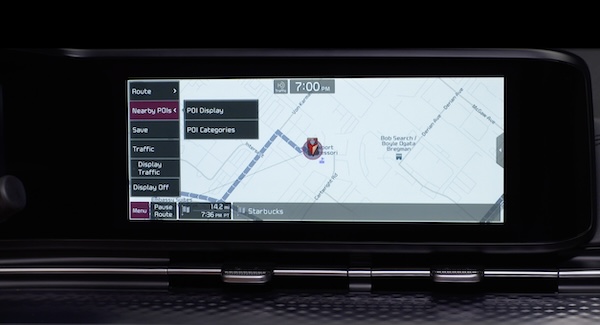
Navigation System Important Tips

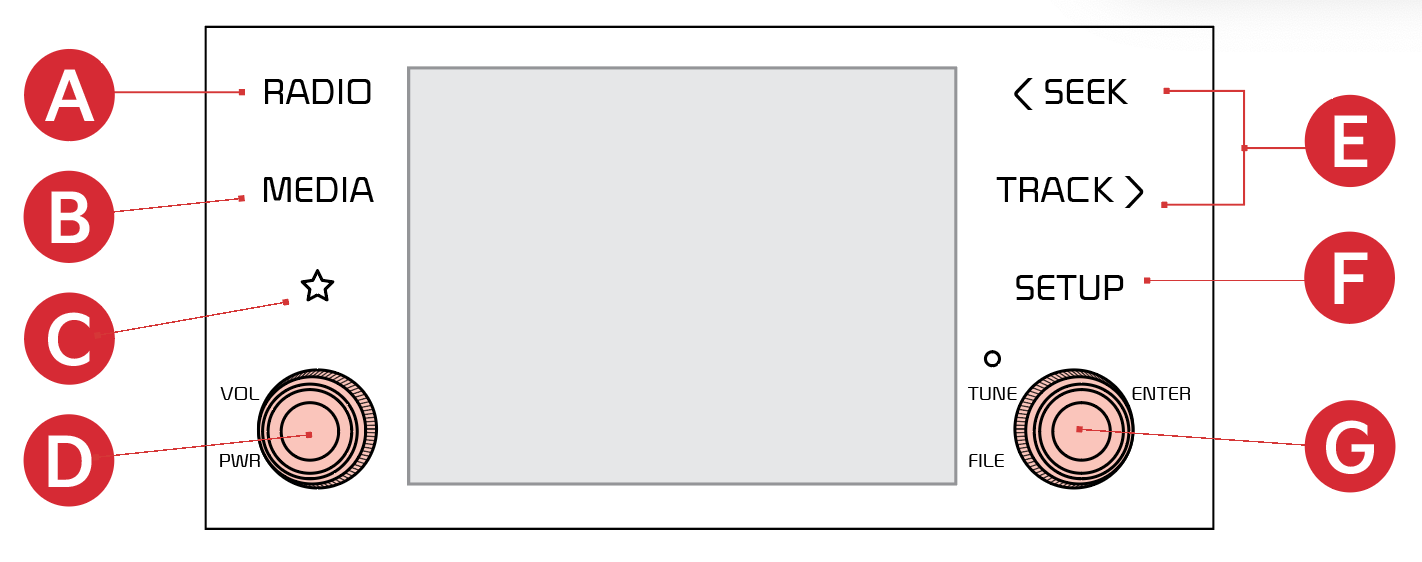
 Press to select FM/AM modes
 Press to select MEDIA modes
 Press to select CUSTOM (Set) menu
 Press to Power ON/OFF. Rotate to adjust Volume
 Press briefly to do the following:
Press and hold to do the following (over 0.8 seconds):
 Press to display Setup/Settings menu
 In Radio/Media modes, rotate knob to search for stations/channels/tracks/ songs/files. Press the knob to receive the selected channel/track/song/file
To Save a Preset, press and hold the desired slot. This saves the current station in the selected slot.
To program the Custom KeyButton:

Software updates -
To keep your software up to date, free of charge, visit the official Kia update webpage at https://update.kia.com/US/EN/Main
Note: visiting a dealer for software update may include an additional charge.
To adjust the sound settings:
In Radio mode, choose SiriusXM™, then select any of the first ten favorites, and during song or program play, tap the Skip Backward icon to start from the beginning of the song or program. Tap the Play Live icon to return to the live broadcast.
*See LEGAL page for legal information.
Certain features are available on select Kia models.
Your vehicle’s audio system may differ from that in the illustration. For more information, refer to the Car Infotainment System Quick Reference Guide.
Driving while distracted can result in a loss of vehicle control that may lead to an accident, severe personal injury and death. The driver’s primary responsibility is in the safe and legal operation of a vehicle, any handheld devices, other equipment or vehicle systems which take the driver’s eyes, attention and focus away from the safe operation of a vehicle or that are not permissible by law should never be used during operation of the vehicle.
The system can register or pair multiple Bluetooth® devices. See the Car Infotainment System Quick Reference Guide for more information on setup and limitations.