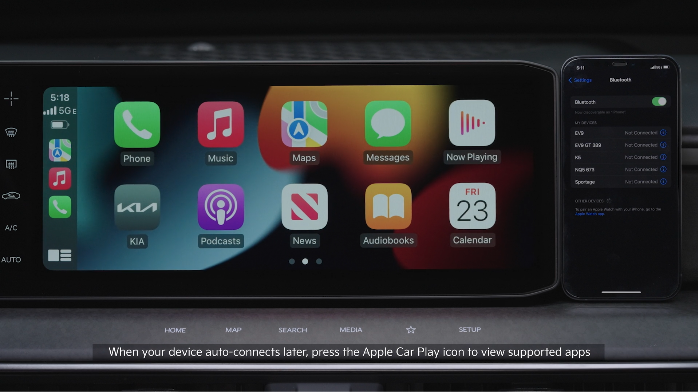
Apple Carplay®*

Wireless Connection* setup for Apple CarPlay®:

Press the SETUP key on the Infotainment System

  1. Press DEVICE CONNECTION
  2. Select DEVICE CONNECTIONS, then ADD NEW
  3. Make sure Wi-Fi and Bluetooth® are activated on the smartphone and select the vehicle system from the list of searched Bluetooth® devices
  4. Confirm that the verification codes on the iPhone® and the infotainment screen match, and approve the connection from the smartphone
  5. When connecting to Apple CarPlay® for the first time, check the pop-up window displayed on the system and press YES. Agree to enable Apple CarPlay® from the iPhone®

Cable Connection setup for Apple CarPlay®

Connect the Apple CarPlay® compatible iPhone® with the vehicle’s USB port using the manufacturer’s cable provided with your iPhone®.

  1. Connect the Apple CarPlay® compatible iPhone® with the vehicle’s USB port using the manufacturer’s cable provided with your iPhone®
  2. Press the SETUP button on the Infotainment System
  3. Press DEVICE CONNECTION on the screen and select Apple CarPlay®
  4. Select ENABLE APPLE CARPLAY. Review all terms, conditions and requests on the head unit and phone, and, if you agree, accept them in order to use Apple CarPlay®
  5. From the Infotainment System home screen, select the Apple CarPlay® button, where you’ll see all the Apple CarPlay® supported apps

Quick Tips:

If Apple CarPlay® randomly disconnects:

  • Ensure the USB cable is certified by the phone manufacturer for both power and data
  • Clean the phone’s port, which the USB cable connects to, with disposable compressed air
  • The phone should not be disturbed while driving as this can cause a disconnection at the phone’s USB port
  • Visit the phone manufacturer’s website for Apple CarPlay® app concerns

Reminders:

  • Apple CarPlay® compatibility requirements for connection: iOS® software 10.0 or higher, phone manufacturer’s USB cable and data plan for applicable feature(s)
  • Always update your phone to the latest operating system release
  • Apple CarPlay® runs on your smartphone cellular data service. Normal data rates will apply

*See LEGAL page for legal information.

Certain features are available on select Kia models.

For further Kia Connect with Smart Navigation operations, refer to the Car Infotainment System Quick Reference Guide.

.

Android Auto™ and Apple CarPlay® run on your smartphone cellular data service. Normal data rates will apply.

.

Driving while distracted can result in a loss of vehicle control that may lead to an accident, severe bodily injury, and death. The driver’s primary responsibility is in the safe and legal operation of a vehicle, and any handheld devices, other equipment, or vehicle systems which take the driver’s eyes, attention and focus away from the safe operation of a vehicle or which are not permissible by law should never be used during operation of the vehicle. Images are for illustrative purposes only and may not reflect actual feature or operation.