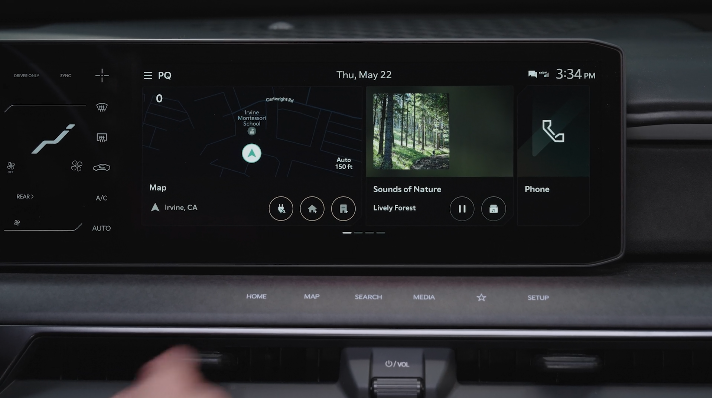
Kia Connect with Navigation
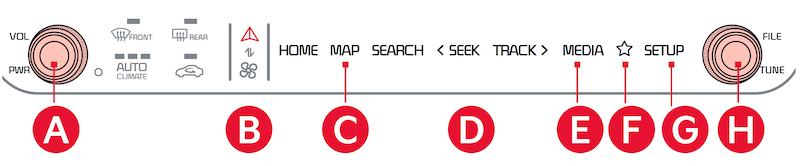
 Press to Power ON/OFF. Rotate to adjust Volume. Press and hold to turn off screen and sound.
 Infotainment System/Climate Control mode switching button
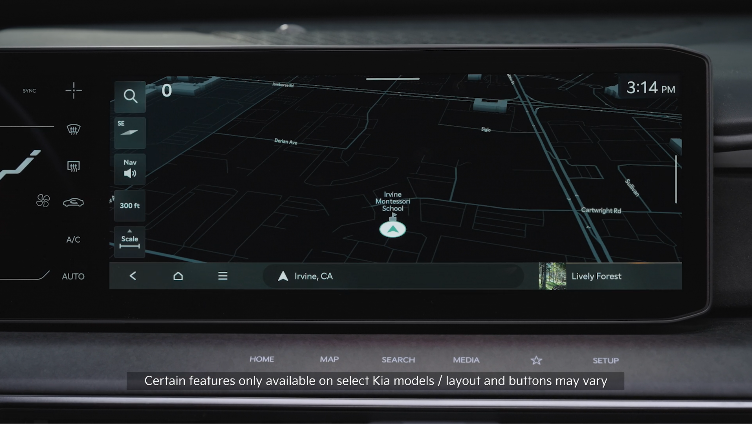
 Press to display the current position on the map or repeat voice guidance
 Press briefly to do the following:
 Press to run connected MEDIA; press and hold to display the Media Home screen
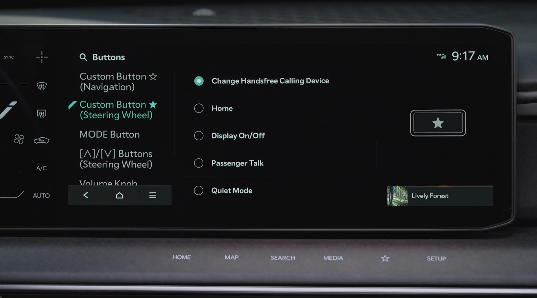
 Press to select the custom feature, press and hold to display the function settings screen
 Press to display the Settings screen
 In radio mode, adjust the frequency or change the station. In media mode, scan music or files. Press to select current channel, music or file. On map screen, zoom in or out of the map
Press to toggle between Infotainment System and Climate Control Modes. Press and hold the Climate Control button  to set the default button display mode.
To adjust the sound settings (Position, Volume Tone, Priority, Navigation Volume, Advanced, Default, Beep) from any audio mode:
Radio Presets: To save a preset, press the star button . This saves the current station in the selected slot.
SiriusXM™ Smart Favorites: In Radio mode, choose SiriusXM™, then select any of the first ten favorites, and during song or program play, tap the Skip Backward icon to start from the beginning of the song or program. Tap the Play Live icon to return to the live broadcast.
**Custom Button **
To program the Custom Button to one of the available features:
*See LEGAL page for legal information.
Your vehicle’s audio system may differ from that in the illustration. For more information, refer to the Car Infotainment System Quick Reference Guide.
Driving while distracted can result in a loss of vehicle control that may lead to an accident, severe personal injury and death. The driver’s primary responsibility is in the safe and legal operation of a vehicle, any handheld devices, other equipment or vehicle systems which take the driver’s eyes, attention and focus away from the safe operation of a vehicle or that are not permissible by law should never be used during operation of the vehicle.