Kia Connect Infotainment System w/ Navigation*
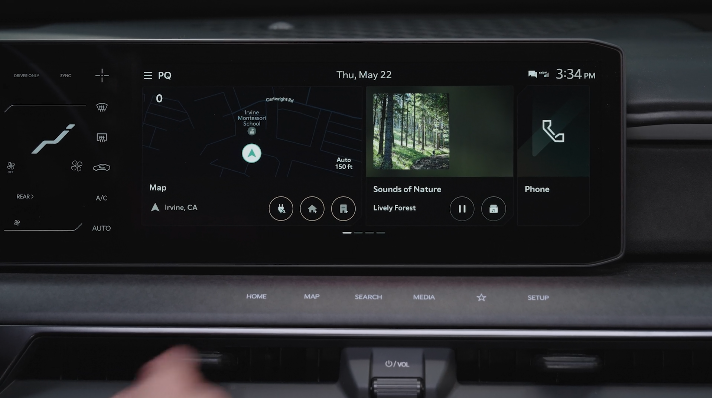

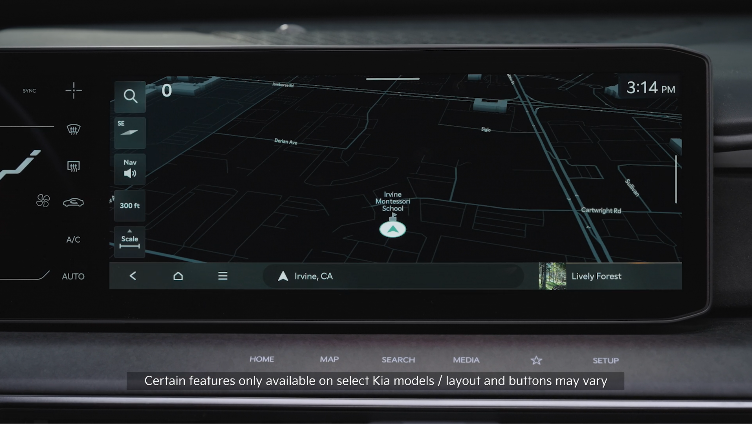
To adjust the sound settings from any audio mode: Press the SETUP button on the Infotainment System, then the onscreen SOUND button. Select the menu item to change settings, then use the onscreen buttons to adjust settings.
Radio Presets: To save a preset, press the star icon next to the station.
SiriusXM®* Smart Favorites: In MEDIA mode, choose SiriusXM®*, then select any of the first six favorites. During song or program play, tap the skip backward icon to start from the beginning of the song or program. Tap the play live icon to return to the live broadcast.
Custom Key  : To program a custom key, press and hold the Custom Key, then select one of the available features you would like the Custom Key to open.
Software updates: To keep your software up to date, Kia provides over-the-air updates. You can also click the link above, snap the QR code to watch the video, or visit the official Kia update webpage at https://update.kia.com. Note, visiting a dealer for software update may include an additional charge.

 POWER button/VOLUME knob: Press to turn the Media ON/OFF. Press and hold to turn off the screen and sound. Rotate to adjust the system volume (except for navigation sound)
 Infotainment/Climate switch button: Switch between control panel functions. Press/hold to access the control panel default settings screen
 HOME button: Press to go to the Home screen. Press and hold to turn the Quick Control function ON/OFF
 MAP button (Systems with navigation): Pressing the Map button displays the Navigation* System map and your current location
MAP button (Systems without navigation): When a phone is paired and connected via phone projection, press to display the phone’s native map screen. When a phone is not connected, it will display the phone projection setting screen
 SEARCH button: Displays the Search screen
 SEEK/TRACK buttons: While listening to the radio, press to change the station. While playing media, press to change the track/file
 MEDIA button (FM/AM, SiriusXM®*, USB, Bluetooth®* Audio): Press to play the connected media. Press and hold to display the Media source options
 Custom button: Press to play the user-defined function. Press and hold to display the function settings screen
 SETUP button: Displays the Settings screen. Press and hold to display the version information screen
 TUNE knob: While listening to the radio, press to adjust the frequency or change the station. While playing media, press to scan music or files. During scanning, press to select the current channel, music or file. While on the map screen, zoom in or out on the map (except for navigation sound)
Quick Tips:
- Volume level between different audio modes:— When switching between audio modes (AM, FM, Bluetooth® Audio, etc.), the audio system saves the previous volume level you were listening to. For example, if you were listening to FM radio at volume level 20 then switched to Bluetooth® Audio and adjusted the volume level to 30, the volume level will be at 20 when you switch back to FM radio
- When connected to Android Auto™ or Apple CarPlay® on your smartphone, the smartphone’s navigation system may also be available
- This system supports Android Auto™ and Apple CarPlay® (USB connection only)
- A warning screen may appear periodically to remind users that the navigation system should be operated when the vehicle is running to prevent battery discharge
- At any time, you can interrupt Kia Connect* Command Feedback by pressing any button on the steering wheel
Reminders:
- To help reduce driver distraction, some audio system functionalities have been modified while the vehicle is in Drive, Reverse or moved out of Park
- Prolonged use of the audio head unit in ACC mode may drain the vehicle’s battery
*See LEGAL page for legal information
Certain features are available on select Kia models.
Image is for illustrative purposes only and may not reflect actual feature or operation.
For further Kia Connect* with Navigation operations, refer to the Car Infotainment System Quick Reference Guide.