Kia Connect Infotainment System - (Non-Navigation & Navigation)
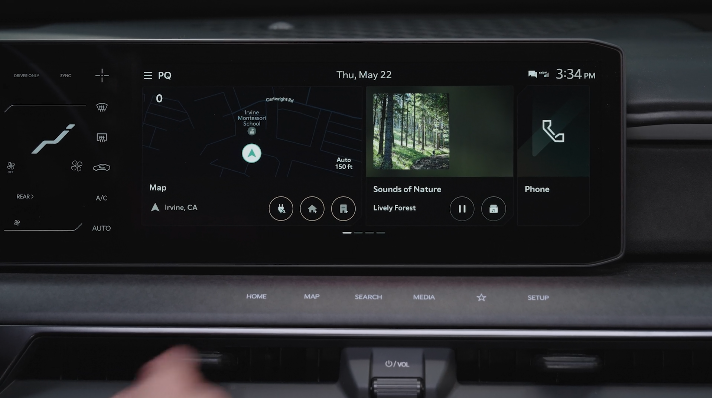

FM/AM/ Media (USB, Bluetooth®* Audio)

 HOME: Press to go to the Home screen. Press and hold to turn the Quick Control function ON/OFF
 **MAP button (Systems with navigation): **Pressing the Map button displays the Navigation* System map and your current location
**MAP button (Systems without navigation): **When a phone is paired and connected via phone projection, press to display the phone’s native map screen. When a phone is not connected, it will display the phone projection setting screen
 SEARCH button: Displays the Search screen
 POWER button/VOLUME knob: Press to turn the Media ON/OFF. Press and hold to turn off the screen and sound. Rotate to adjust the system volume (except for navigation sound)
 MEDIA button: (FM/AM, SiriusXM®, USB, Bluetooth® Audio): Press to play the connected media. Press and hold to display the Media Home screen
 Custom button: Press to play the user-defined function. Press and hold to display the function settings screen
 SETUP button: Displays the Settings screen. Press and hold to display the version information screen
**To adjust the sound settings: **Press the SETUP key on the Infotainment System or the onscreen SETUP button in ALL MENUS. Select the onscreen SOUND button, or SOUND SETTINGS. Select the menu item to change settings, then use the onscreen buttons to adjust settings.
Radio Presets: To save a preset, press the “Add Channel” button on the bottom of the preset list if there are less than 5 presets saved. If more, the button will be on top of the list.
SiriusXM™ Smart Favorites: In Radio mode, choose SiriusXM™, then select any of the first ten favorites, and during song or program play, tap the Skip Backward icon to start from the beginning of the song or program. Tap the Play Live icon to return to the live broadcast.
**Custom Key ** : To program the Custom Key to one of the available features: To program the Custom Key to one of the available features, press and hold the SETUP button, then press the Custom Key . Select one of the available features you would like the Custom Key to open.
Map/software updates - To keep your map and software up to date, Kia provides over-the-air updates, free of charge. You can also visit the official Kia update webpage at https://update.kia.com.
Note, visiting a dealer for software update may include an additional charge.
Quick Tips:
- The system can register or pair multiple Bluetooth® devices
- Volume level between different audio modes:— When switching between audio modes (AM, FM, Bluetooth® Audio, etc.), the audio system saves the previous volume level you were listening to. For example, if you were listening to FM radio at volume level 20 then switched to Bluetooth® Audio and adjusted the volume level to 30, the volume level will be at 20 when you switch back to FM radio— When using Bluetooth® Audio, the overall volume is dependent on your device’s volume. If the volume is turned down low on your device it will remain low even if the system volume is turned up
- This system supports Android Auto™ and Apple CarPlay® (USB connection only)
- A warning screen may appear periodically to remind users that the navigation system should be operated when the engine is running to prevent battery discharge
- At any time, you can interrupt the Voice Command Feedback by pressing the Voice Recognition button on the steering wheel
Reminders:
To help minimize driver distraction, some audio system functionalities have been modified while the vehicle is in Drive, Reverse or moved out of Park.
*See LEGAL page for legal information
Some features may not be available on all Kia models.
For further Kia Connect with Smart Navigation operations, refer to the Car Infotainment System Quick Reference Guide. Button configuration may vary. Images are for illustrative purposes only and may not reflect actual feature or operation.
Driving while distracted can result in a loss of vehicle control that may lead to an accident, severe bodily injury, and death. The driver’s primary responsibility is in the safe and legal operation of a vehicle, and any handheld devices, other equipment, or vehicle systems which take the driver’s eyes, attention and focus away from the safe operation of a vehicle or which are not permissible by law should never be used during operation of the vehicle. Images are for illustrative purposes only and may not reflect actual feature or operation.