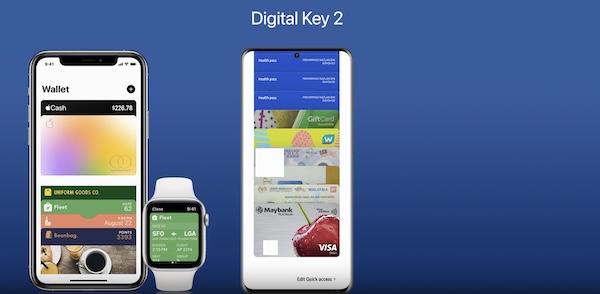
Digital Key 2 Setup, Registration & Sharing
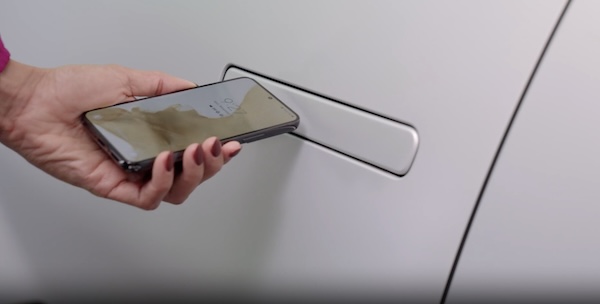
Digital Key 2, through your smartphone, can be used to lock and unlock your vehicle and allow you to start or power off your vehicle, without needing to have a key fob.
 , Smartphone Key, then My Smartphone Key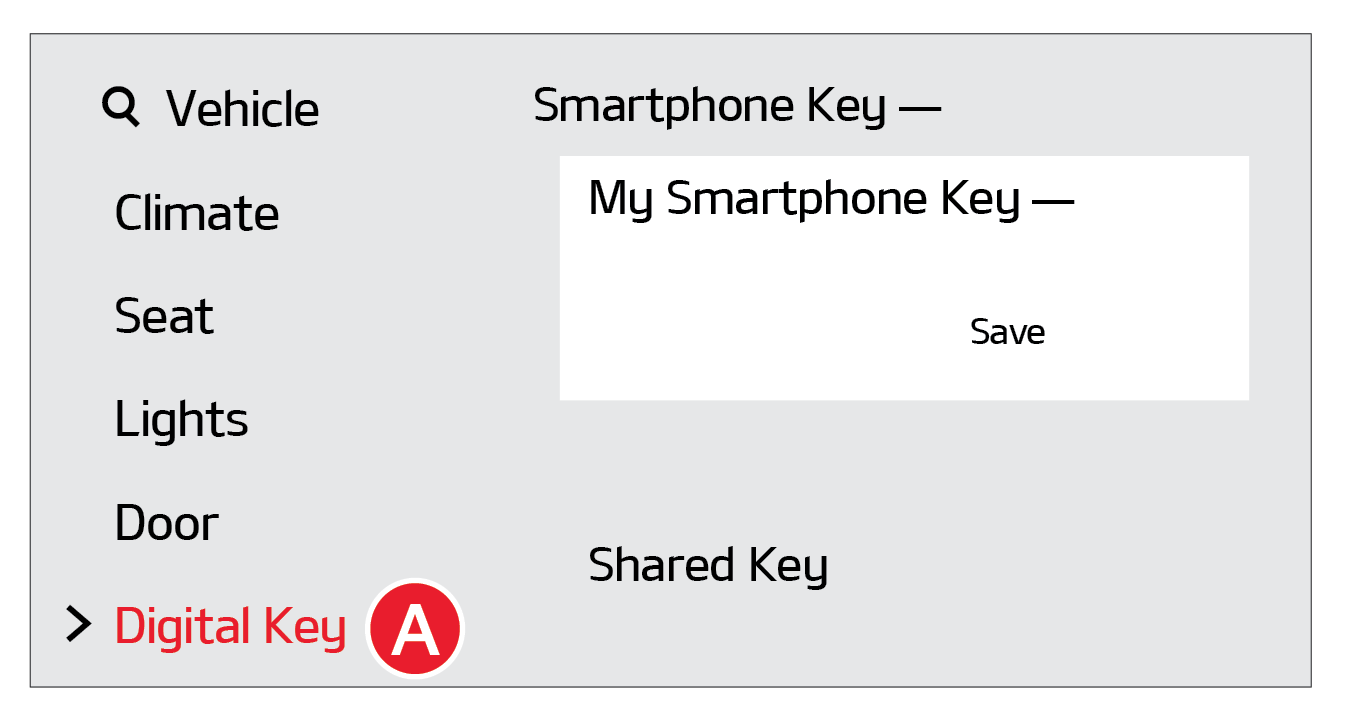
 , Continue To Wallet App, then Continue again, which will open the Wallet app. Follow the prompts to complete the registration/ pairing of your smartphone (actual steps may vary between apps/smartphones)
 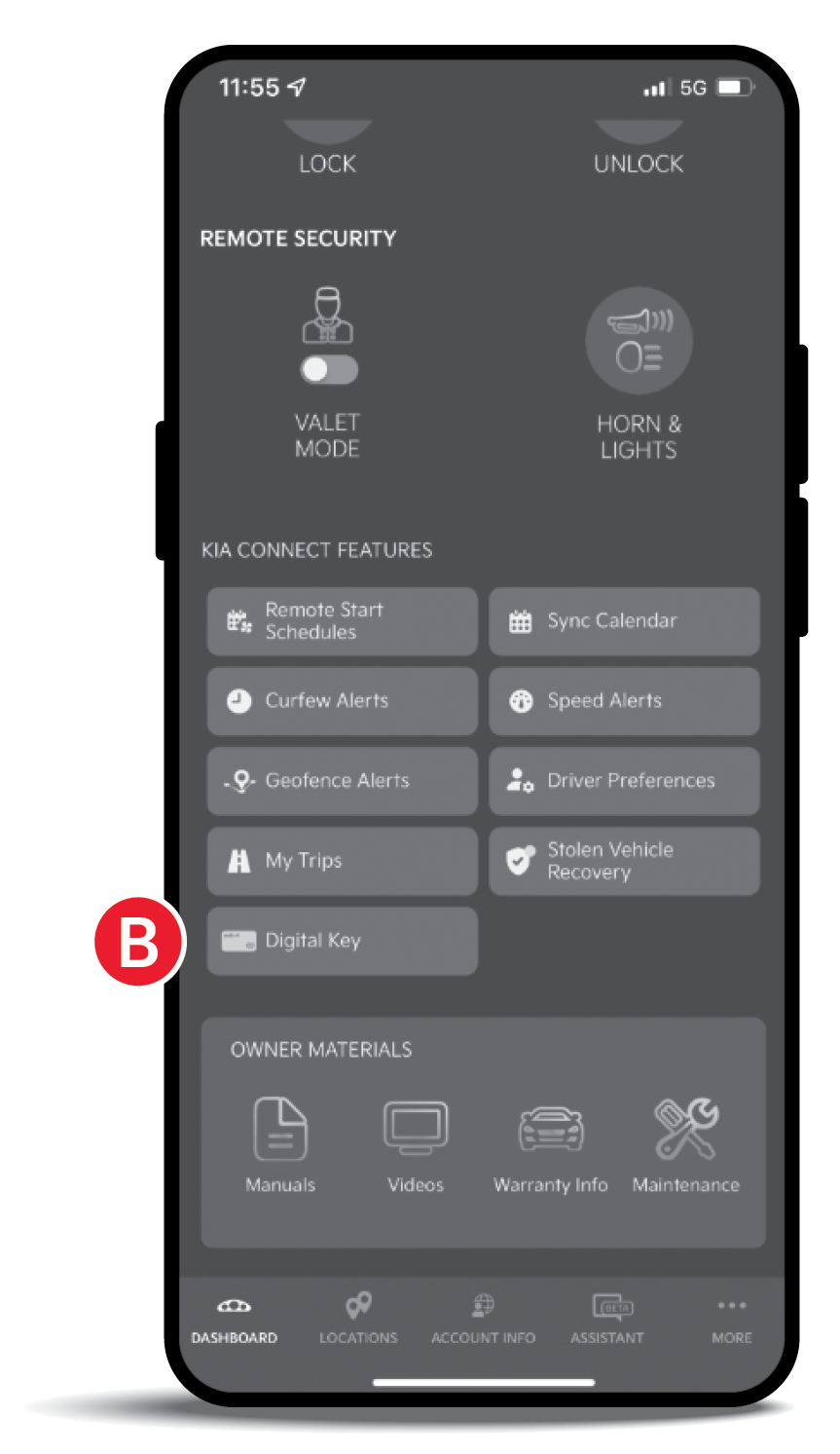 , press the brake pedal and the Engine Start/Stop button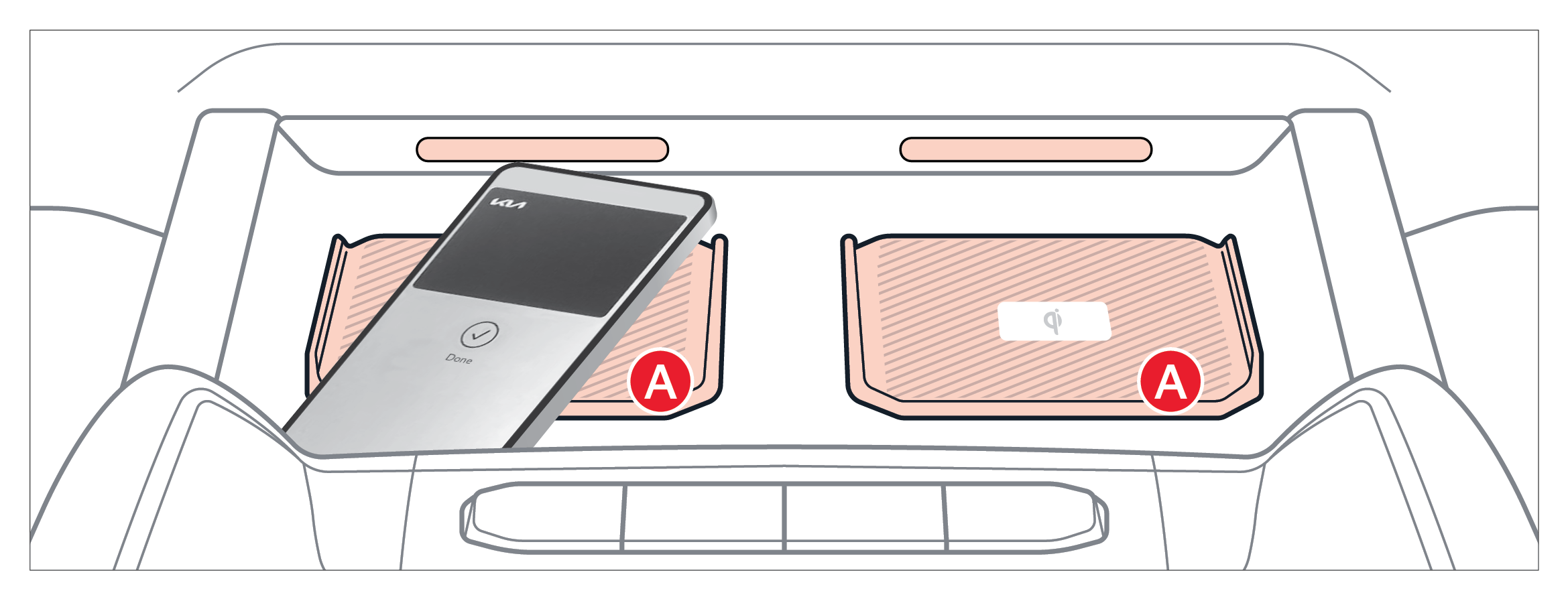
When sharing a Digital Key, the receiver of the share invitation must have the same smartphone operating system, e.g., Apple® to Apple® and Samsung™ to Samsung™
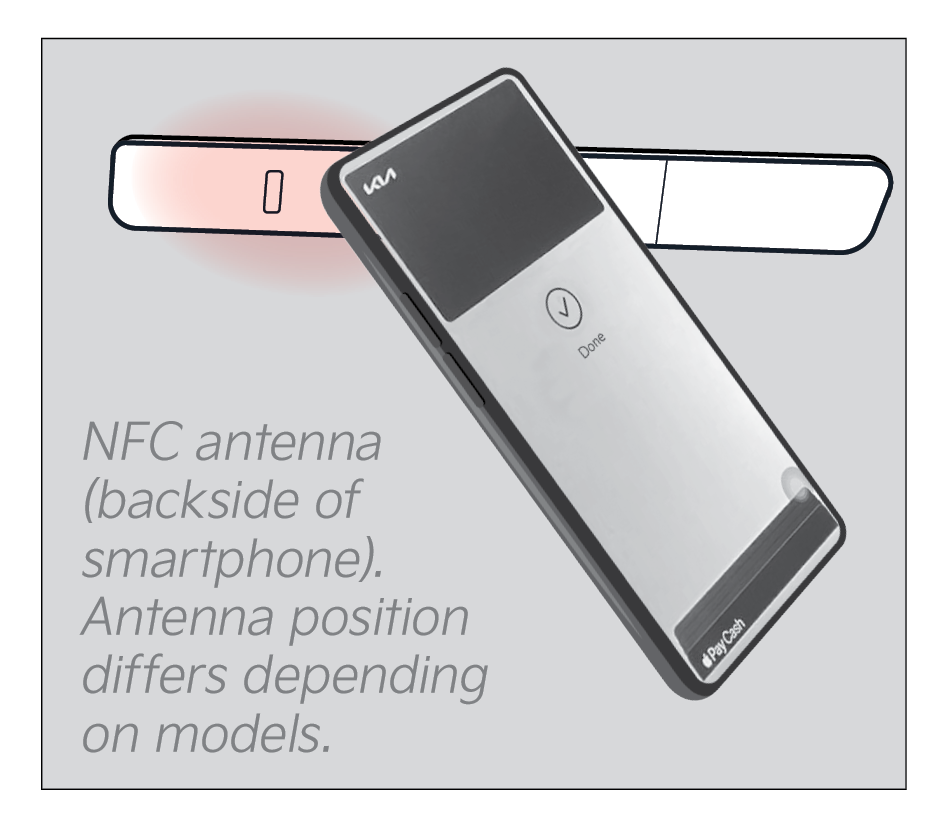
You can also delete a key using the Wallet app on your smartphone.
Go to the Vehicle Settings on the Infotainment System. Press SETUP, VEHICLE, DIGITAL KEYS, SMARTPHONE KEY, SMARTPHONE KEY.
Select the Digital Key and press DELETE
– The smartphone is removed from the in-vehicle authentication pad
– Changing the Infotainment System screen
– The vehicle is powered off or the gear is shifted
– There is no smart key in the vehicle or on your person (saving process will not begin)
– You may need to set up the language for Samsung™ smartphones
– For Apple iPhone® (Ensure the device has the latest version of iOS®):
– iPhone XS® or later.
– iPhone 11® Pro or later (for passive entry or remote features on compatible cars)
– For Apple Watch® (Ensure the device has the latest version of watchOS®):
– Apple Watch® Series 5 or later
– Apple Watch® Series 6 or later (for passive entry or remote features on compatible cars)
– For Samsung Phones: Ensure the device has the latest version of Android OS™ and latest application version of Samsung™ Wallet)
– Galaxy S20™ or later
– Galaxy Note20™ 5G or later
– Galaxy Z Flip™ 5G or later
– Galaxy Fold 2™ or later
*See LEGAL page for legal information. This feature may not be available on all Kia models.
Kia Digital Key 2 Touch requires an eligible Kia Connect subscription and a compatible smart device with an active data plan. Normal cellular service rates may apply when using a smart device. Button configuration may vary. Images are for illustrative purposes only and may not reflect actual feature or operation.
Refer to section 4 in the Owner’s Manual for more information.